磁盘分区
目标
创建存储分区,将其格式化为响应的文件系统,并进行挂载以供使用。
名词解释
- 磁盘分区
磁盘分区允许系统管理员将硬盘驱动器划分为多个罗技存储单元,这些单元称为分区,通过将磁盘划分为多个分区,系统管理员可以使用不通的分区执行不同的功能。
在以下情况下,磁盘分区是必要或有益的:
- 限制应用或用户的可用空间
- 将操作系统和程序文件与用户文件分隔开
- 创建用于内存交换的单独区域。
- 限制磁盘空间使用,以提高诊断工具和备份映像的性能。
- MBR分区方案
自1982年以来,主动记录(MBR)分区方案指定了在运行BIOS固件的系统上如何对磁盘进行分区。此方案支持最多4个主分区。在linux系统上,管理员可以使用拓展分区和逻辑分区来创建最多15个分区。由于分区大小数据以及32位值存储,使用MBR方案分区时,最大磁盘和分区大小为2TiB
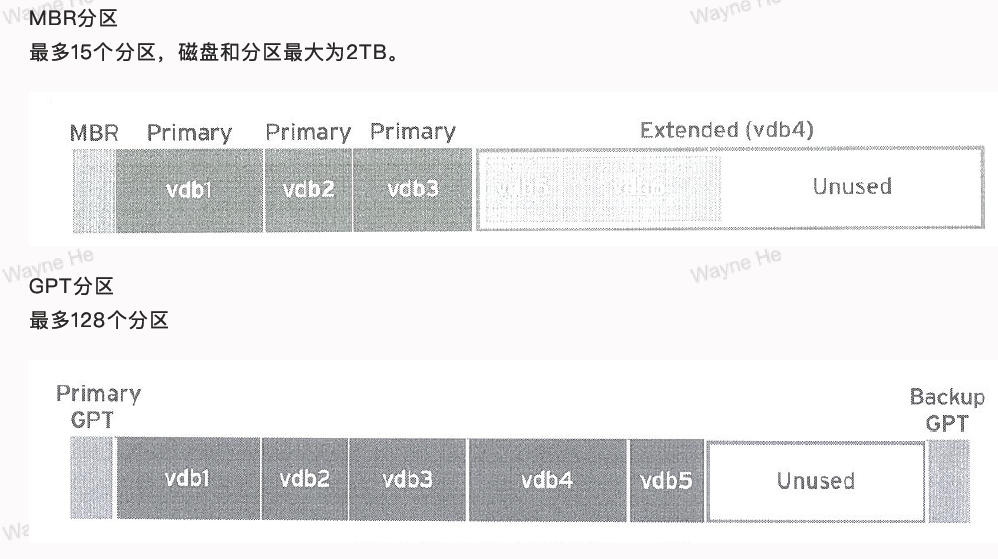
由于物理磁盘变得越来越大,而基于SAN的卷甚至更大,因此针对MBR分区方案的2TiB磁盘和分区大小限制已不再是理论限制,而是系统管理员在生产环境中越来越频繁遇到的实际问题。因此,新的GUID分区表(GPT)正在取代传统的MBR方案用于磁盘分区。
- GPT分区方案
对于运行统一可拓展固件接口(UEFI)固件的系统,GPT是在物理硬盘上布置分区表的标准。GPT是UEFI标准的一部分,可以解决原有基于MBR的方案所带来的许多限制。
GPT最多可提供128个分区。MBR使用32为来存储逻辑块地址和大小信息;与此不同,GPT为逻辑块地址分配64位。这就使得GPT可支持最多8泽字节(ZiB),即80亿太字节的分区和磁盘。
除解决MBR分区方案的限制以外,GPT还可提供一些其他功能特性和优势。GPT使用全局唯一标识符(GUID)来识别每个磁盘和分区。与MBR存在单一故障点不同,GPT提供分区表信息的冗余。主GPT位于磁盘头部,而备份副本(次GPT)位于磁盘尾部。GPT使用校验和来检测GPT头和分区表中的错误与损坏。
实操演示
- 创建MBR分区
命令:parted
常用选项:
用法:parted [options] [device [command [options…]…]]选项:
align-check TYPE N: 检查分区 N 的 TYPE(min|opt) 对齐方式
help [COMMAND]: 打印一般帮助,或关于 COMMAND 的帮助
mklabel,mktable LABEL-TYPE: 创建一个新的磁盘标签(分区表)
mkpart PART-TYPE [FS-TYPE] START END: 做一个分区
name NUMBER NAME: 将分区 NUMBER 命名为 NAME
print [devices|free|list,all|NUMBER]: 显示分区表、可用设备、可用空间、所有找到的分区或特定分区
quit: 退出命令
rescue START END: 抢救 START 和 END 附近丢失的分区
resizepart NUMBER END: 调整分区 NUMBER
rm NUMBER: 删除分区 NUMBER
select DEVICE: 选择要编辑的设备
disk_set FLAG STATE: 更改所选设备上的 FLAG
disk_toggle [FLAG]: 切换所选设备上的 FLAG 状态
set NUMBER FLAG STATE: 更改分区 NUMBER 上的 FLAG
toggle [NUMBER [FLAG]]: 切换分区 NUMBER 上的 FLAG 状态
unit UNIT: 将默认单位设置为 UNIT
version: 显示 GNU Parted 的版本号和版权信息
[root@localhost ~]# parted /dev/sdc
GNU Parted 3.1
使用 /dev/sdc
Welcome to GNU Parted! Type 'help' to view a list of commands.
(parted) ?
  align-check TYPE N                        check partition N for TYPE(min|opt) alignment
  help [COMMAND]                           print general help, or help on COMMAND
  mklabel,mktable LABEL-TYPE               create a new disklabel (partition table)
  mkpart PART-TYPE [FS-TYPE] START END     make a partition
  name NUMBER NAME                         name partition NUMBER as NAME
  print [devices|free|list,all|NUMBER]     display the partition table, available devices, free space, all found partitions, or a particular partition
  quit                                     exit program
  rescue START END                         rescue a lost partition near START and END
  resizepart NUMBER END                    resize partition NUMBER
  rm NUMBER                                delete partition NUMBER
  select DEVICE                            choose the device to edit
  disk_set FLAG STATE                      change the FLAG on selected device
  disk_toggle [FLAG]                       toggle the state of FLAG on selected device
  set NUMBER FLAG STATE                    change the FLAG on partition NUMBER
  toggle [NUMBER [FLAG]]                   toggle the state of FLAG on partition NUMBER
  unit UNIT                                set the default unit to UNIT
  version                                  display the version number and copyright information of GNU Parted
##创建一个分区磁盘表
(parted) mklabel msdos
(parted) p
Model: VMware, VMware Virtual S (scsi)
Disk /dev/sdc: 21.5GB
Sector size (logical/physical): 512B/512B
Partition Table: msdos
Disk Flags:

Number  Start  End  Size  Type  File system  标志

(parted) help mkpart
  mkpart PART-TYPE [FS-TYPE] START END     make a partition

    “分区类型”是主分区、逻辑分区、扩展分区之一
        “文件系统类型”是以下任意一项:btrfs, nilfs2, ext4, ext3, ext2, fat32, fat16, hfsx, hfs+, hfs, jfs, swsusp, linux-swap(v1), linux-swap(v0), ntfs, reiserfs, hp-ufs,
        sun-ufs, xfs, apfs2, apfs1, asfs, amufs5, amufs4, amufs3, amufs2, amufs1, amufs0, amufs, affs7, affs6, affs5, affs4, affs3, affs2, affs1, affs0,
        linux-swap, linux-swap(new), linux-swap(old)
        START and END are disk locations, such as 4GB or 10%.  Negative values count from the end of the disk.  For example, -1s specifies exactly the last
        sector.

        'mkpart' makes a partition without creating a new file system on the partition.  FS-TYPE may be specified to set an appropriate partition ID.
##创建一个主分区
(parted) mkpart primary ext4 0% 512MB
(parted) p
Model: VMware, VMware Virtual S (scsi)
Disk /dev/sdc: 21.5GB
Sector size (logical/physical): 512B/512B
Partition Table: msdos
Disk Flags:

Number  Start   End    Size   Type     File system  标志
 1      1049kB  512MB  511MB  primary

##查看剩余空间
(parted) p free
Model: VMware, VMware Virtual S (scsi)
Disk /dev/sdc: 21.5GB
Sector size (logical/physical): 512B/512B
Partition Table: msdos
Disk Flags:

Number  Start   End     Size    Type     File system  标志
        32.3kB  1049kB  1016kB           Free Space
 1      1049kB  512MB   511MB   primary
        512MB   21.5GB  21.0GB           Free Space

(parted) mkpart primary xfs 512MB 2560MB
(parted) p
Model: VMware, VMware Virtual S (scsi)
Disk /dev/sdc: 21.5GB
Sector size (logical/physical): 512B/512B
Partition Table: msdos
Disk Flags:

Number  Start   End     Size    Type     File system  标志
 1      1049kB  512MB   511MB   primary
 2      512MB   2560MB  2048MB  primary

(parted) p free
Model: VMware, VMware Virtual S (scsi)
Disk /dev/sdc: 21.5GB
Sector size (logical/physical): 512B/512B
Partition Table: msdos
Disk Flags:

Number  Start   End     Size    Type     File system  标志
        32.3kB  1049kB  1016kB           Free Space
 1      1049kB  512MB   511MB   primary
 2      512MB   2560MB  2048MB  primary
        2560MB  21.5GB  18.9GB           Free Space
##创建分区不带参数时会出现提示
(parted) mkpart
分区类型?  primary/主分区/extended/扩展分区? primary
文件系统类型?  [ext2]? ext4
起始点? 2560MB
结束点? 4608MB
(parted) p
Model: VMware, VMware Virtual S (scsi)
Disk /dev/sdc: 21.5GB
Sector size (logical/physical): 512B/512B
Partition Table: msdos
Disk Flags:

Number  Start   End     Size    Type     File system  标志
 1      1049kB  512MB   511MB   primary
 2      512MB   2560MB  2048MB  primary
 3      2560MB  4608MB  2049MB  primary

##MBR格式的分区表中主分区已经占满了,剩下创建的就是拓展分区。
(parted) mkpart
分区类型?  primary/主分区/extended/扩展分区? extended
起始点? 4608MB
结束点? 100%
(parted) p
Model: VMware, VMware Virtual S (scsi)
Disk /dev/sdc: 21.5GB
Sector size (logical/physical): 512B/512B
Partition Table: msdos
Disk Flags:

Number  Start   End     Size    Type      File system  标志
 1      1049kB  512MB   511MB   primary
 2      512MB   2560MB  2048MB  primary
 3      2560MB  4608MB  2049MB  primary
 4      4608MB  21.5GB  16.9GB  extended               lba

##创建完拓展分区,创建逻辑分区才能够使用分区。
(parted) mkpart
分区类型?  logical/逻辑分区? logical
文件系统类型?  [ext2]? xfs
起始点? 4608MB
结束点? 5632MB
警告: The resulting partition is not properly aligned for best performance.
忽略/Ignore/放弃/Cancel? Ignore
(parted) p
Model: VMware, VMware Virtual S (scsi)
Disk /dev/sdc: 21.5GB
Sector size (logical/physical): 512B/512B
Partition Table: msdos
Disk Flags:

Number  Start   End     Size    Type      File system  标志
 1      1049kB  512MB   511MB   primary
 2      512MB   2560MB  2048MB  primary
 3      2560MB  4608MB  2049MB  primary
 4      4608MB  21.5GB  16.9GB  extended               lba
 5      4608MB  5632MB  1024MB  logical

(parted) p free
Model: VMware, VMware Virtual S (scsi)
Disk /dev/sdc: 21.5GB
Sector size (logical/physical): 512B/512B
Partition Table: msdos
Disk Flags:

Number  Start   End     Size    Type      File system  标志
        32.3kB  1049kB  1016kB            Free Space
 1      1049kB  512MB   511MB   primary
 2      512MB   2560MB  2048MB  primary
 3      2560MB  4608MB  2049MB  primary
 4      4608MB  21.5GB  16.9GB  extended               lba
 5      4608MB  5632MB  1024MB  logical
        5632MB  21.5GB  15.8GB            Free Space
##删除分区直接输入分区编号即可
(parted) rm 5
(parted) rm 4
(parted) p free
Model: VMware, VMware Virtual S (scsi)
Disk /dev/sdc: 21.5GB
Sector size (logical/physical): 512B/512B
Partition Table: msdos
Disk Flags:

Number  Start   End     Size    Type     File system  标志
        32.3kB  1049kB  1016kB           Free Space
 1      1049kB  512MB   511MB   primary
 2      512MB   2560MB  2048MB  primary
 3      2560MB  4608MB  2049MB  primary
        4608MB  21.5GB  16.9GB           Free Space

(parted) quit
信息: You may need to update /etc/fstab.
- 创建GPT分区
[root@localhost ~]# parted /dev/sdd
GNU Parted 3.1
使用 /dev/sdd
Welcome to GNU Parted! Type 'help' to view a list of commands.
##创建gpt分区表
(parted) mklabel gpt
(parted) p
Model: VMware, VMware Virtual S (scsi)
Disk /dev/sdd: 21.5GB
Sector size (logical/physical): 512B/512B
Partition Table: gpt
Disk Flags:

(parted) mkpart
分区名称?  []? data
文件系统类型?  [ext2]? xfs
起始点? 0%
结束点? 2048MB
(parted) mkpart
分区名称?  []?
文件系统类型?  [ext2]? xfs
起始点? 2048MB
结束点? 4096MB
(parted) p
Model: VMware, VMware Virtual S (scsi)
Disk /dev/sdd: 21.5GB
Sector size (logical/physical): 512B/512B
Partition Table: gpt
Disk Flags:

Number  Start   End     Size    File system  Name  标志
 1      1049kB  2048MB  2047MB               data
 2      2048MB  4096MB  2048MB

(parted) quit
信息: You may need to update /etc/fstab.
- 挂载分区
[root@localhost ~]# mkfs.xfs /dev/sdc1
meta-data=/dev/sdc1              isize=512    agcount=4, agsize=31168 blks
         =                       sectsz=512   attr=2, projid32bit=1
         =                       crc=1        finobt=0, sparse=0
data     =                       bsize=4096   blocks=124672, imaxpct=25
         =                       sunit=0      swidth=0 blks
naming   =version 2              bsize=4096   ascii-ci=0 ftype=1
log      =internal log           bsize=4096   blocks=855, version=2
         =                       sectsz=512   sunit=0 blks, lazy-count=1
realtime =none                   extsz=4096   blocks=0, rtextents=0
[root@localhost ~]# mkdir /sdc1
[root@localhost ~]# mount /dev/sdc1 /sdc1
[root@localhost ~]# lsblk
NAME            MAJ:MIN RM  SIZE RO TYPE MOUNTPOINT
sda               8:0    0   50G  0 disk
├─sda1            8:1    0    1G  0 part /boot
└─sda2            8:2    0   49G  0 part
  ├─centos-root 253:0    0 41.7G  0 lvm  /
  ├─centos-swap 253:1    0    7G  0 lvm  [SWAP]
  └─centos-data 253:2    0 20.3G  0 lvm  /data
sdb               8:16   0   20G  0 disk
└─sdb1            8:17   0   20G  0 part
  └─centos-data 253:2    0 20.3G  0 lvm  /data
sdc               8:32   0   20G  0 disk
├─sdc1            8:33   0  487M  0 part /sdc1
├─sdc2            8:34   0  1.9G  0 part
└─sdc3            8:35   0  1.9G  0 part
sdd               8:48   0   20G  0 disk
├─sdd1            8:49   0  1.9G  0 part
└─sdd2            8:50   0  1.9G  0 part
sr0              11:0    1 1024M  0 rom
[root@localhost ~]# df -h
文件系统                 容量  已用  可用 已用% 挂载点
devtmpfs                 894M     0  894M    0% /dev
tmpfs                    910M     0  910M    0% /dev/shm
tmpfs                    910M  9.8M  900M    2% /run
tmpfs                    910M     0  910M    0% /sys/fs/cgroup
/dev/mapper/centos-root   42G  4.8G   37G   12% /
/dev/sda1               1014M  184M  831M   19% /boot
/dev/mapper/centos-data   21G   33M   21G    1% /data
tmpfs                    182M     0  182M    0% /run/user/0
/dev/sdc1                484M   25M  460M    6% /sdc1